“Power Layouts” for Digital Scrapbookers

When I was exclusively a “Traditional” scrapbooker, I used the “Power Layout” method all the time. Especially when I had a big project I was working on.  It was a great way to take something that seemed overwhelming, daunting, even, and break it down into bite-sized chunks.  Now that I scrapbook both digitally and traditionally, I wondered how I could make the method work in the digital world. Here are the thoughts I had (and feel free to share your own ideas in the comments).

Note: I am using StoryBook Creator Plus 3.0 and Memory Manager 3.0 (which are Creative Memories products)  I’m not a Photoshop scrapbooker. Never will be. Photoshop is too complicated for me!  However, these concepts should work regardless of the tool you use.

1. Decide which photos you want to use. The first step is to figure out what pictures you want to use. If you are using Memory Manager, you can do this ahead of time by using the sort boxes and organizing your photos by project. In an upcoming post, I’ll offer some suggestions for organizing your digital photos.  For right now, though, pick out the photos you want to use.  In Memory Manager (MM) you can drag the pictures to the Work Area.

From there, you can click on Share and choose StoryBook Creator (SBC).  This should offer you the option of creating a new StoryBook or dropping the files in an existing StoryBook. If this is a new project, go ahead and create the new StoryBook. If it is for an existing project, be sure you already have SBC open and the StoryBook already open.

Here’s a tip: Create a StoryBook, not a Page Print document. If you create a StoryBook, you will still have the option to print pages individually.  However, you’ll also have the option to view two pages at a time (and bounce between the two pages easily to edit them).  This is a great feature which allows you to easily line things up across two pages and ensure that your layouts have balance.

Note that when you create a StoryBook, you get a default number of pages in your StoryBook (I think it is 20 pages).  You can always add or remove pages as you go so don’t worry about how many pages you think you may need in the StoryBook.

3. Set your view to “Two Pages” in SBC+ so that you can easily work between both pages in a two page spread. You can do this by going to View and selecting Two Pages.  You should also consider setting your speed to High Speed rather than High Quality.  It will speed up your work considerably and does not affect anything other than the way your pages are displayed onscreen.closeup

4. Drag and drop your pictures on the page. Don’t worry about putting things in any order or arranging them on the pages.  Just drag and drop the pictures you want grouped together on the page.  Then, move on to the next page (use the Previous/Next buttons on the top right for faster navigating between pages).  Don’t get hung up on deciding what should go where on a page. Just figure 4-6 pictures per page and move on to the next.

Here’s another tip: Set your picture view to Show: Photos Not Used. That way you don’t accidentally use a picture twice. I’ve done that before and didn’t notice it… even after I got the printed pages back! My kids noticed. I didn’t.

Tomorrow… the next steps.

Me: The Abridged Version (aka My latest project)

I have been a fan of Big Picture Scrapbooking almost from their inception. The concept is awesome.  Discrete project-based scrapbooking classes delivered over the web that you can work on according to your own schedule. They have live chats, message boards, downloads, templates, you name it. The projects are designed for digital or traditional scrapbookers, with adaptations for either style.

I have recently been attending the “Me: The Abridged Version” class that has been taught by Cathy Zielske.  She has been inspiring and has helped me to think “outside the box” in terms of scrapbooking.  I have been trying for a year or two to move out of the chronological-style of scrapbooking into capturing more moment-based memories.  But, it’s always felt a little awkward to me – and I have secretly felt like I was “cheating” and would eventually have to go back to catch up on the chronological albums.

Me: The Abridged Version has been the first project that hasn’t made me feel that way.  I have been excited to work on it and have had fun putting it together.  The premise is this – put together an album that is a simplified “encyclopedia” about you. (it’s based off of the book “Encyclopedia of an Ordinary Life” by Amy Krouse Rosenthal)  It has been fun picking words to go with the letters of the alphabet that best describe me and my life.  It has been even more fun trying to figure out what pictures go best with the words. I have been taking pictures of things I never thought to take pictures of before!

As you may already know, I have been learning digital scrapbooking using Creative Memories’ StoryBook Creator+ software.  To do this workshop, I decided to create a digital scrapbook. The downloads on Big Picture’s website were all based on Photoshop, so this required some ingenuity on my part. I created my own template, eyeballing what had been set up in the PDF handouts and having fun creating my own page.

Once the template had been created, I picked a paper set (in this case Creative Memories’ Jewel Power Palette worked for me) and rotated papers each time the letter changed.

It’s not finished yet, but I’m having fun working on it.  Here is a sample of the page template I created.

Left PageRight Page

I will upload some finished pages in the next week or two so that you can see how it looks as it is filled in.

If you think you want to try your hand at this, here’s the template I created.  You will need StoryBook Creator+ 3.0. If you already have SBC+ 2.0, the upgrade is only $9.95 through October. Oh, and the file is zipped, so you will need to download WinZip or some other zip software to unzip the download.

A convert is made

I’ve been teaching myself digital scrapbooking.  I have to admit, I thought I would never get into scrapping digitally.  I spend all day working on a computer, why would I want to do something for fun on the computer as well?  But, then I started seeing other digital pages… and I went to a retreat where a gal was cropping only digitally.  I couldn’t believe how good her pages looked.  You almost couldn’t tell that they were not “traditional” scrapbook pages.  And… the big clincher – I realized nothing is consumable, everything is reusable.  I started to think about the economics of that, as well as the fact that there is WAY less mess, clutter, and stuff to cart around.  Going to a crop? Take your laptop and go. No more broken back!

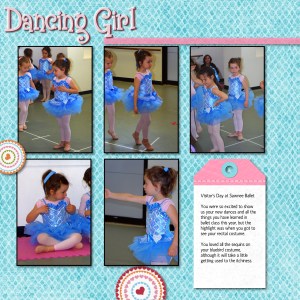
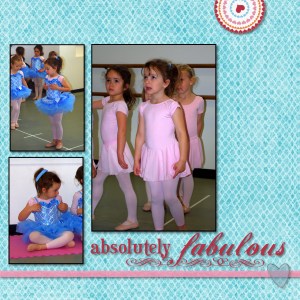
BallerinaBallerina - Page 002

I’ve been using Creative Memories’ program (I just can’t get past the learning curve in PhotoShop)  and I love it.  It’s called StoryBook Creator.  There’s a free download version and a purchased version.  The free version only allows you to use predesigned pages and drop your pictures in.  That’s great if you don’t consider yourself technologically savvy.  The predesigned pages are really nice (there are even free ones you can download and use).  However, I quickly found that I wanted to tweak my pages a little bit.  The upgrade to the StoryBook Creator+ version is not that expensive and well worth the investment.

There are virtually unlimted options.  I am amazed at the fact that I keep finding new, cool things to do to my pages.  Like a diecut, but don’t like the color? Change it!

I have also discovered that I can download virtually any .png graphic and use it in SBC+.  This opens up the entire internet, which is full of all sorts of downloadable items for use in scrapbook pages. Scrapbook.com has some really nice page elements you can download – some are even free.  I also love the fact that everything I purchase from Creative Memories is color-coordinated by theme.  Makes it really easy to mix and match elements to achieve the custom look I like.

Ballerina - Page 003Ballerina - Page 004

So, I’m probably about 5 years behind the rest of the world when it comes to digital scrapbooking, but I have to say, I love it.  I don’t think I’ll ever give up traditonal scrapbooking completely, however. There’s something about the tactile sense of moving paper around and cutting/pasting things that is very relaxing to me.  But when I’m in the mood to scrap and not in the mood to make a mess, digital works for me.